Creating professional-looking videos no longer requires a powerful computer or complicated editing software. With KineMaster Pro (PreActivated), you can edit videos directly from your smartphone and turn ordinary clips, photos, music, and ideas into engaging content.
KineMaster is a popular mobile video editing solution designed for creators who want powerful editing tools without dealing with a complicated desktop workflow. Whether you create YouTube videos, Facebook Reels, TikTok-style short videos, Instagram content, product promotions, educational videos, travel videos, or personal projects, KineMaster provides a wide range of editing tools in a mobile-friendly interface.
If you are looking for a convenient way to edit videos on your Android device, KineMaster Pro (PreActivated) from Bikrom Store is an option worth considering. The pre-activated version is intended to provide access to the advertised Pro features without requiring you to go through a lengthy activation process.
Important: KineMaster is a third-party application and its availability, features, compatibility, and licensing can change with app updates or device/Android versions. Always use software according to the applicable license and terms.
KineMaster is a mobile video editing application that combines basic editing tools with more advanced creative features. Instead of transferring your footage to a computer, you can perform many everyday editing tasks directly from your phone or tablet.
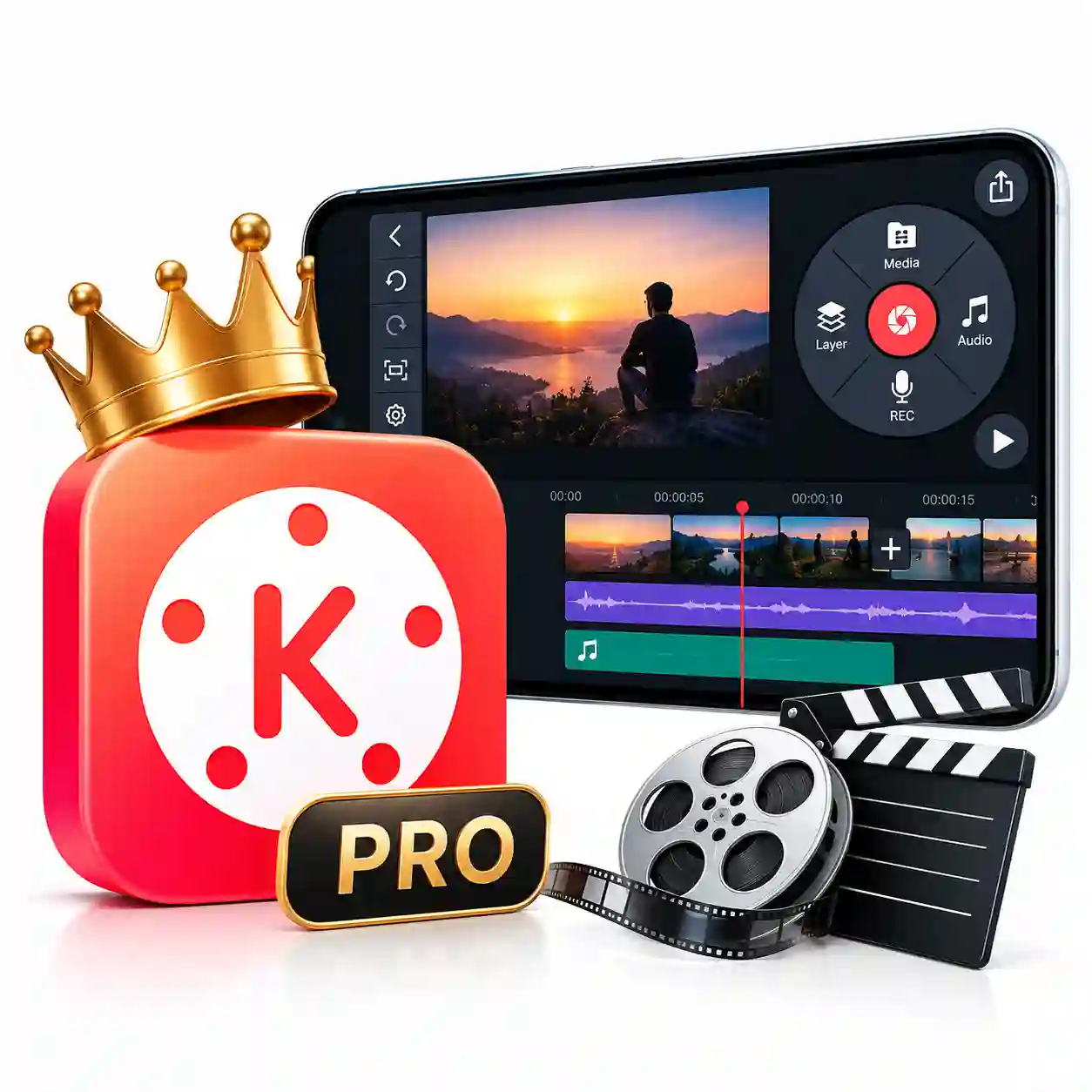
The application uses a timeline-based editing workflow, allowing you to arrange video clips, images, audio, text, effects, and other elements in an organized project. This makes it useful for beginners while also giving experienced creators greater control over their projects.
With KineMaster, you can cut unwanted sections, combine multiple clips, add background music, record narration, adjust playback speed, create transitions, place text over videos, apply visual effects, and export the finished project in a suitable quality.
The Pro experience is aimed at users who want more flexibility and access to premium-oriented editing capabilities, depending on the version and licensing available.
A good mobile video editor should make the editing process easier rather than turning every project into a complicated technical task. KineMaster focuses on a practical timeline interface where different elements can be arranged and adjusted independently.
The PreActivated edition is particularly convenient for users who want to start editing without spending unnecessary time on complicated setup procedures.
Whether you are a content creator, student, freelancer, small business owner, teacher, marketer, or casual video editor, a mobile editing application can save considerable time when you need to create content quickly.
One of KineMaster’s useful capabilities is its layer-based editing system. You can place different types of content over your main video instead of limiting yourself to a single track.
For example, you can use layers for:
This approach is particularly useful when creating promotional videos, tutorials, social media content, reaction videos, presentations, and other projects that require multiple visual elements.
You can also adjust the timing of individual layers so that specific elements appear only when needed.
You don’t need to keep every second of your recorded footage. KineMaster provides practical tools for removing unwanted portions and organizing your clips.
You can trim clips, split footage, remove unnecessary sections, and combine multiple videos into a single project.
This is useful when editing:
A simple trimming workflow can make your final video considerably more focused and enjoyable to watch.
KineMaster isn’t limited to conventional video footage. You can also combine multiple photographs into a video-style presentation.
Add your selected images to the timeline, arrange their sequence, include transitions, add music, and create a slideshow-style video.
This can be useful for:
Transitions help connect one clip to another smoothly. Instead of simply jumping from one scene to the next, you can use suitable transitions to create a more polished visual flow.
Depending on the available version and asset library, KineMaster may offer different transition styles and downloadable creative assets.
The important point is to use transitions appropriately. A professional-looking video does not necessarily require a transition between every clip. Choosing effects that match the content usually produces a cleaner result.
KineMaster includes playback speed controls that allow you to change how quickly a clip plays.
You can use speed adjustments to create:
Speed control can be particularly effective when combined with music, transitions, and carefully timed cuts.
Sound can dramatically change the quality of a video. KineMaster allows you to work with audio as part of your editing workflow.
You can add suitable music, sound effects, or other supported audio files to your project and synchronize them with your visual content.
For example, a product video may benefit from background music, while a tutorial may require narration and subtle sound effects.
Copyright reminder: Only use music, sound effects, and other media that you have permission to use, especially when publishing videos commercially or on monetized platforms.
If you want to explain something while the video is playing, voice-over functionality can be extremely useful.
You can record narration for:
This makes it possible to create informative content without needing a separate audio-recording application for every project.
Text is an essential part of modern video content. From subtitles and titles to promotional messages and educational explanations, text can communicate information quickly.
KineMaster provides text tools and supports various font styles, depending on the installed version and available resources.
You can use text for:
Using appropriate font sizes, positioning, contrast, and timing can make your content significantly easier to understand.
For creators who want to make more expressive videos, stickers and graphical elements can add personality to the project.
They can be useful for social media videos, reaction content, casual edits, promotional posts, and creative projects.
However, visual elements should support the message rather than overwhelm it. A balanced design generally looks more professional.
KineMaster supports various types of visual effects that can be applied to video content.
Depending on the version and available asset collection, effect categories may include styles related to:
These tools allow creators to experiment with different visual styles without requiring advanced desktop editing software.
Sound effects can make certain scenes more engaging. Depending on the available library, creators may find different sound categories and effects suitable for their projects.
You can use sound effects to emphasize actions, transitions, humorous moments, environmental scenes, or dramatic sequences.
When used carefully, small audio details can make a mobile-edited video feel considerably more complete.
Creative projects sometimes require more than standard text. KineMaster can support handwriting or drawing-style elements as part of its layer-based workflow.
This can be useful for:
Because these elements can be positioned within the project timeline, you can control when they appear.
After completing an editing project, you need to export it into a finished video file.
KineMaster provides export options that can vary according to the installed version, device capabilities, and project settings. Depending on those factors, you may be able to select appropriate resolution, quality, and other export parameters.
Before exporting a large project, make sure your device has sufficient free storage space.
KineMaster can be useful for a wide range of users.
If you regularly publish videos on YouTube, Facebook, Instagram, or other platforms, KineMaster can provide a convenient mobile editing workflow.
Small brands and social media managers can use mobile editing tools to prepare promotional clips and short-form content while working away from a computer.
Students can create presentations, educational projects, assignments, demonstrations, and slideshow videos directly from a smartphone.
Teachers can combine video, images, text, narration, and other elements to create engaging educational material.
Business owners can create product demonstrations, promotional videos, announcements, and social media content without requiring a dedicated editing workstation.
The mobile-oriented interface makes KineMaster approachable for users who are just starting to learn video editing.
Short-form video has become an important content format across many platforms. A mobile editor can be particularly useful when speed matters.
With KineMaster, creators can assemble clips, add captions, synchronize music, adjust speed, add effects, and prepare content for publishing.
For social media videos, focus on:
The editing application is only one part of creating successful content. The quality of your footage, storytelling, audio, and overall presentation also matters.
KineMaster can also be used for many types of YouTube content.
You can combine multiple clips, add an introduction, insert background music, create captions, record narration, and apply visual effects.
For educational or tutorial videos, layers can be especially useful because you can display screenshots, images, labels, or other supporting information over the main footage.
For vlog-style videos, trimming and audio editing can help remove unnecessary sections and maintain a better pace.
Getting started does not have to be complicated.
Step 1: Open KineMaster and create a new project.
Step 2: Import the videos or images you want to use.
Step 3: Arrange the media on the timeline.
Step 4: Trim unwanted portions and organize your clips.
Step 5: Add text, images, stickers, or other layers where necessary.
Step 6: Add background music, sound effects, or voice-over.
Step 7: Apply transitions and visual effects selectively.
Step 8: Review the entire project before exporting.
Step 9: Choose an appropriate export setting supported by your installed version and device.
Step 10: Save the finished video to your device.
One of the biggest advantages of an application such as KineMaster is convenience.
You don’t always have access to a desktop computer when an editing idea comes to mind. A smartphone, however, is usually available.
Mobile editing allows you to:
For creators who prioritize flexibility, this can be a major advantage.
KineMaster’s performance can vary depending on your smartphone or tablet.
Factors such as:
can affect editing performance.
High-resolution footage and projects containing many layers or effects may require more processing power and storage. If your device becomes slow during editing, closing background applications and freeing storage may help.
Compatibility should always be checked against the requirements of the specific KineMaster version you are installing.
Before ordering KineMaster Pro (PreActivated), please keep the following points in mind.
The exact features and behavior of an application can change when developers release new versions. Device compatibility may also vary.
A pre-activated application should be installed only from a trusted source and used in accordance with applicable software licensing and usage terms.
For your security, avoid providing sensitive account credentials to unknown applications and keep your Android device protected with current security updates.
If a specific version is required for your device, verify compatibility before installation.
At Bikrom Store, the goal is to make digital products and software-related solutions easier to access for customers.
When choosing an application from an online store, customers naturally want clear product information instead of vague promises. That’s why it is important to understand what the product does, what features it offers, and whether it suits your device and requirements before purchasing.
KineMaster Pro (PreActivated) is suitable for users who want a mobile-focused video editing solution with a broad selection of creative tools.
Whether you are making a short social media clip or working on a more detailed video project, KineMaster can help bring different media elements together within one editing workflow.
KineMaster Pro (PreActivated) refers to a version of the KineMaster mobile video editing application provided as pre-activated according to the product offering. The exact features and activation behavior may depend on the specific version supplied.
Yes. KineMaster is designed primarily for mobile video editing, allowing users to work directly from compatible smartphones and tablets.
Yes. You can arrange multiple video clips within a project and combine them into a complete video.
Yes. Images can be incorporated into projects and used to create slideshows, presentations, promotional content, or supporting visual elements.
Yes. Text can be added to videos for titles, captions, subtitles, labels, and other purposes.
KineMaster supports adding audio to projects, subject to the capabilities of the installed version and supported file formats.
Yes, voice-over recording is one of the useful functions available within KineMaster’s editing workflow.
Yes. KineMaster provides speed-control functionality for supported projects.
Yes. Its mobile-focused interface and collection of editing tools make it suitable for beginners while still providing more advanced creative controls.
Not necessarily. Compatibility and performance depend on the Android version, hardware specifications, application version, and other device factors.
Not necessarily. Features can vary between versions, devices, regions, and licensing arrangements. Always check the specific product/version information before installation.
Yes. It can be used for many types of YouTube content, including tutorials, vlogs, reviews, educational videos, short-form content, and promotional videos.
Yes. You can combine photographs on the timeline and create slideshow-style videos with music, text, and transitions.
If you want to create engaging videos without depending entirely on a desktop computer, KineMaster Pro (PreActivated) can be a practical mobile video editing solution. Its combination of timeline editing, multiple layers, text, audio, voice-over, speed control, transitions, effects, stickers, images, and export functionality gives creators plenty of room to experiment.
From simple family videos to social media reels, educational content, product promotions, and YouTube projects, KineMaster can fit a variety of editing needs.
If you are specifically looking for KineMaster Pro (PreActivated), you can explore the product at Bikrom Store and review the available version and compatibility information before placing your order.

Reviews
There are no reviews yet.